
Every teacher who records lectures ends up with the same problem eventually. The recording exists, the content is good, but it sits as one long file that students rarely watch start to finish. Turning that hour of raw lecture footage into short, usable study clips, a concept explanation here, a worked example there, is the part that actually takes time, and it is usually the part that gets skipped entirely once the school week gets busy again.
The good news is that AI has made this step faster across several tools built for exactly this kind of work. Here are five video editors worth knowing about, scored specifically on how quickly they get you from a raw lecture recording to a usable clip.
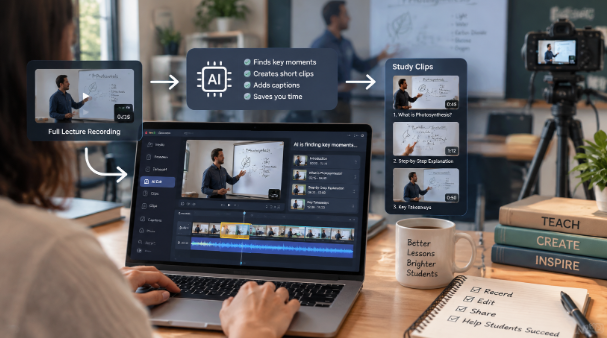
What matters most for this use case
Before ranking anything, it helps to be clear about what “fast” actually means for a teacher working with lecture footage specifically.
- Handling long, single-take recordings well, since most lecture footage is one continuous file with pauses, repeated explanations, and tangents.
- Finding the useful moment without rewatching the whole thing, since scrubbing through an hour of footage to find one five-minute explanation is where most of the time actually goes.
- Producing a clean, short clip without a steep learning curve, since most teachers are not trained editors and do not want to become one.
- Keeping the option to fix or adjust the clip afterward, since an automated cut is rarely perfect on the first try.
Invideo Editor
Invideo Editor is a professional video editor with AI editing agents built to handle the repetitive part of editing, reviewing footage, finding the right sections, and building a working cut, while leaving a real, editable timeline underneath. It runs entirely in the browser, is free to use, and does not require any software download before a teacher can start working with a recording.
For a lecture recording specifically, a teacher can upload the full file and simply describe what they want, the section on photosynthesis, the part where the equation gets worked out step by step, and the agent reviews the footage, finds the relevant material, and assembles a base cut around it. This is where agentic video editing becomes genuinely useful for turning a long, unedited recording into something a student would actually watch, since the heavy lifting of reviewing and selecting footage happens automatically rather than by scrubbing through the timeline by hand.
Raw footage to usable clip speed: Very fast. Describing the moment or topic replaces manually searching through the recording, and the returned base cut is already close to a finished study clip rather than a rough starting point.
Strengths: genuinely handles long, single-camera lecture recordings without a script needed. Multiplayer support means a teacher and a teaching assistant can work on the same clip together.
Limitations: a clearer description of the topic or moment produces a stronger first cut. A vague direction leaves more cleanup work for later.
Descript
Descript turns editing into editing a transcript. Once a lecture is uploaded, the audio gets transcribed automatically, and a teacher can select the text of the section they want, the part explaining a specific concept, and delete everything else. The video follows the text edit.
Raw footage to usable clip speed: Fast, provided the lecture has clear spoken structure. Reading a transcript to find a section is quicker than scrubbing a timeline, though it does require reading through the transcript first.
Strengths: genuinely useful for a lecture with a lot of continuous speaking. Overdub can fix a misspoken word without needing to re-record the whole segment.
Limitations: less useful for lectures with a lot of visual demonstration, board work, or diagrams, since the transcript-based editing model is built around spoken content specifically.
Opus Clip
Opus Clip is built to take a long recording and automatically pull out short, high-engagement segments, originally designed for turning long-form video into social media clips. Applied to a lecture recording, it can surface likely candidate moments without a teacher specifying exactly where they are.
Raw footage to usable clip speed: Fast for surfacing candidate clips automatically, though the moments it selects are chosen for general engagement rather than academic relevance, so a teacher still needs to review and pick the actually useful ones.
Strengths: genuinely good at finding standout moments without manual searching. Adds captions automatically, which helps for review-style study clips.
Limitations: built around social engagement scoring rather than educational relevance, so it may surface an energetic tangent over the actual concept explanation a teacher wanted.
CapCut
CapCut is a fast, accessible editor with a large library of templates, effects, and auto-captioning, primarily built for short-form content. For a teacher who already knows roughly where the useful section of a lecture is, CapCut makes trimming and captioning that clip quick.
Raw footage to usable clip speed: Fast once the section has already been identified manually, since CapCut does not automatically locate a relevant moment inside a long recording the way some other tools here do.
Strengths: genuinely simple to use, with strong mobile support for quick edits between classes.
Limitations: requires manually scrubbing through the full lecture first to find the section worth clipping, since it lacks the search or description-based location tools some other options offer.
Adobe Premiere Pro
Premiere Pro remains the industry standard manual editing tool, offering full control over cuts, transitions, and effects. For a school or department with a dedicated media staff member handling lecture editing, Premiere provides depth that lighter tools do not.
Raw footage to usable clip speed: Slowest of the group for this specific task. Every cut, trim, and selection happens manually on the timeline, which gives precise control but takes considerably longer for someone not already comfortable in the software.
Strengths: genuinely powerful for detailed, precise editing when the time and skill are available.
Limitations: a real learning curve for a teacher without editing experience, and manually locating a moment inside a long lecture recording takes real time with no automated shortcut for it.
Which tool should you use?
- Have a long lecture recording and want a study clip built around a specific topic automatically? Invideo Editor.
- Working from lectures with a lot of continuous speaking? Descript.
- Want candidate clips surfaced automatically without specifying where they are? Opus Clip.
- Already know the section you want and just need a quick trim and caption? CapCut.
- Have dedicated editing staff and want full manual control? Adobe Premiere Pro.
The bottom line
Most of the time lost turning a lecture recording into a study clip comes from the searching and reviewing stage, not the actual cutting. Tools that can locate the relevant moment automatically save far more time than tools that only make trimming faster once you have already found it.
For a teacher starting from an hour of raw, unedited lecture footage who wants the useful section found and assembled without scrubbing through the whole recording by hand, Invideo Editor is built specifically around that combination.
Frequently Asked Questions
What’s the fastest way to turn a full lecture recording into a short study clip?
Invideo Editor is built specifically for this, since describing the topic or moment lets an agent review the footage and assemble a base cut automatically, rather than requiring a manual search through the recording first.
Do teachers need editing experience to use these tools?
Not for most of them. Invideo Editor, Descript, Opus Clip, and CapCut are all built to be usable without prior editing knowledge. Premiere Pro has a real learning curve by comparison.
Can these tools handle a lecture with board work or diagrams, not just talking?
Yes, though results vary. Invideo Editor and Opus Clip can work with visual content alongside speech, while Descript’s transcript-based editing works best on lectures with continuous spoken explanation.
Can an automated clip be adjusted afterward if it’s not quite right?
Yes, across all five tools here. Invideo Editor in particular keeps every automated cut on a fully editable timeline, so a teacher can review and adjust the result by hand once the initial clip is built.