
Ask around any staff room and you’ll hear the same complaint in slightly different words. Nobody can find anything. The worksheet exists somewhere, on some drive, under a filename that made perfect sense back in October.
What follows is a small system for naming, storing and protecting the files you teach with. It covers the folder tree, the resource sites worth bookmarking, and the removable storage most of us ignore until it stops working. Give it an hour to set up. After that it runs on twenty minutes a week, usually a Friday.
Key Takeaways
- Organise by subject and unit, not by date. Your computer sorts by date because that’s easy for the computer, not because it’s any use to you.
- SD cards and flash drives are the soft spot in most classroom setups. They move between machines all week and nobody scans them.
- Three or four bookmarked resource sites will save you more time than any organising app, because the hour you lose isn’t going on filing. It goes on searching.
- Grades need one home and one backup. Two half-kept systems beat none, but lose to one messy one.
Why the mess compounds
A teacher in her first September and a teacher in her fifteenth download roughly the same number of files in a term. The difference is that one of them has fifteen years of them stacked up, named across fifteen years’ worth of moods and deadlines, and almost none of it was named with future-you in mind.
The clutter isn’t really the problem, though. It’s the re-work. You go hunting for the fractions review sheet, the one you know you made because you can picture the clipart on it, you burn eight minutes, give up, then spend twenty more building a new one. Twice a week and that’s a prep period gone every month.
There’s a quieter cost too. Scattered files don’t get backed up, because backing up a mess feels like throwing away an afternoon. So nobody does it, and the folder sits unprotected right up until the laptop dies.

Build the folder tree around your teaching
Most setups default to sorting by date. That’s backwards. You don’t think in months, you think in units.
Here’s a structure that tends to survive an actual school year:
- Top level: one folder per subject or course you teach
- Second level: one per unit, numbered so they line up in teaching order (01-Place-Value, 02-Addition, 03-Fractions)
- Third level: the same three folders inside every single unit
Make those three Teach (slides, notes, anything you put on a screen), Practice (worksheets, homework, warm-ups) and Assess (quizzes, rubrics, answer keys).
The sameness is the whole trick. When every unit has identical folders, you stop making decisions about where things go. New worksheet? Practice. Done, next. And six months later, when someone down the corridor asks whether you’ve got anything on equivalent fractions, you’re not searching for it. You’re just walking to the folder.
Filenames need three pieces: the unit, what it is, and which version. 03-Fractions-Review-A.pdf manages all three. Untitled document (4).pdf manages none of them, and you’ll open it four separate times over the year trying to work out what’s in it.
Keep a short list of resource sites you trust
Now the searching, which is where the time really goes.
You need something on prefixes for Thursday. Open a tab, click through five or six sites, hit a paywall, hit a second one, download a set that turns out to have no answer key, and there goes forty minutes. Nothing about that was a materials shortage.
The fix isn’t clever. Pick three or four sites that reliably give you printables with answer keys, park them in one browser folder, and stop starting from an empty search box. Free libraries like 15 Worksheets are useful here since everything is sorted by subject and grade band with the keys included, so you can print and go instead of building from nothing.
Two habits worth pairing with it:
- Rename the file and drop it in the right unit folder before you close the tab. Not later. Later is how we all got here.
- Keep a scrappy text file of what you used and when. Come next September you will not remember which prefix sheet actually landed.
The part of your setup nobody protects
Ask where your files live and you’ll say the laptop, or the school drive. But a fair few of them live on things that physically move around the building.
Classroom cameras take SD cards. So do document cameras, older tablets, and whichever camera the department passes around on trip days. Over a single term one card might touch the school desktop, your laptop at home, the machine in the IT room and a colleague’s computer, and not one of those handovers gets scanned or written down anywhere.
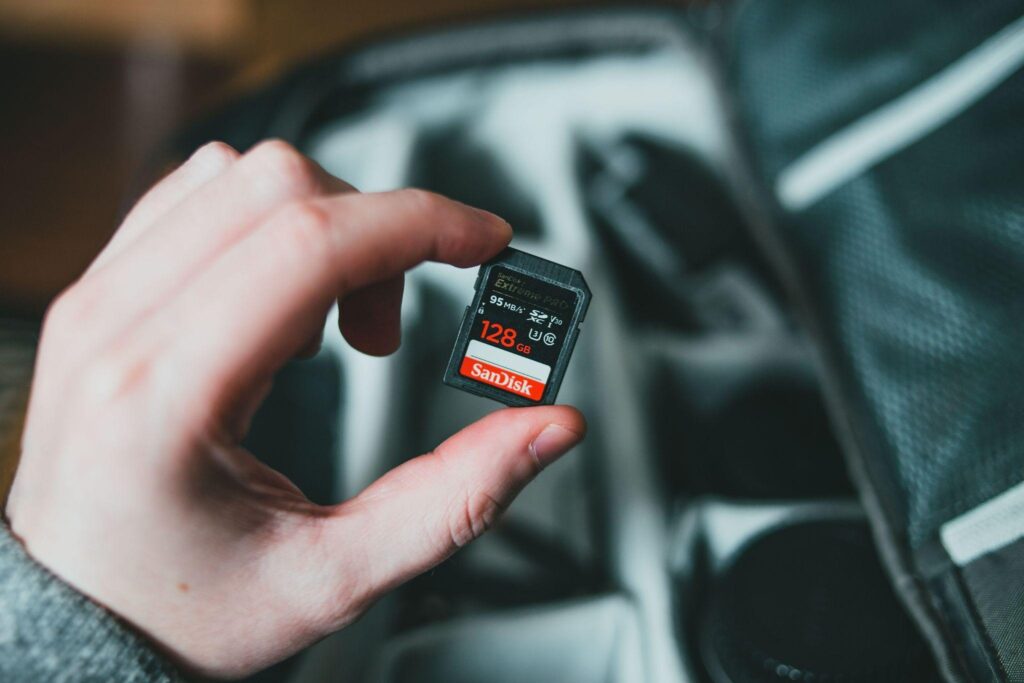
It’s worth knowing the symptoms. A card that’s picked something up will often show your files as shortcuts rather than files, or hide them altogether, or crawl on transfers that used to take seconds. Sometimes you plug it in and get a pop-up insisting you reformat.
Almost everyone’s instinct there is to reformat and get on with the day. Hold off a minute. A full format takes the infection and the trip photos in the same pass, and plenty of teachers have found that out the hard way. It’s worth reading up in advance on what to do when your SD card has a virus, because you can often clear it without wiping anything, and either way you want to copy off whatever’s rescuable before you go near the format button.
A few habits and you can mostly stop thinking about it:
- Empty the card the same day you fill it. Cards move files. They aren’t meant to store them.
- Don’t open unfamiliar files sitting on a shared card, particularly documents you didn’t put there yourself.
- Stick a numbered strip of tape on department cards so you know which ones get around.
- Keep one card that never leaves your room for anything you’d genuinely hate to lose.
Give grades one home
Grades are the one thing where a second copy isn’t optional. Attendance, scores, running averages: a school can come asking for these months down the line, and “I think it was around a B” won’t cut it.
So pick a place. Gradebook platform, spreadsheet, paper book, all fine. What isn’t fine is quiz scores in a notebook, participation ticks in a phone app and rubrics loose on the desktop, because working out a term average then turns into an archaeology project.
Doing the percentages by hand is its own slow leak, especially around paper thirty of forty when you’re half thinking about dinner. A grade calculator takes that bit off your plate.
Whichever route you pick, export or photograph the whole thing at the end of each grading period and put that copy somewhere the original isn’t. One backup you genuinely make beats three you keep meaning to.
The twenty-minute Friday reset
Systems don’t fail at the design stage. They fail on upkeep. So block twenty minutes before you leave on a Friday and do the same four things:
- Clear the desktop. Everything goes into a unit folder or the bin.
- Empty the cards. Anything on an SD card or memory stick comes off and gets filed.
- Rename the week’s downloads. Five or six files usually. Two minutes.
- Back up the gradebook. Same place, same way, every week.
There are no decisions anywhere in that list, which is exactly why it survives past week three.
What to do in June
Don’t archive the lot. Archive what worked.
Go unit by unit and keep the things that actually landed with the class. Bin the duplicates, the sheet you printed once and never used, and the four almost-identical versions of the same quiz. Then zip the subject folder, label it with the school year, and store it somewhere that isn’t your working drive.
Come August you copy that archive, rename it, and open with a tested set instead of a heap. That’s the payoff, and it turns up in the week you’ve got the least time to spare.
Frequently Asked Questions
How long does setting this up actually take? Roughly an hour per subject, assuming you don’t stop to read every file you open. Do one subject and leave it. Trying to fix everything in a single sitting is how people give up on it.
Cloud or local drive? Both, with one of them nominated as the working copy so you always know which is which. Cloud covers you when hardware dies. Local covers you on the morning the wifi is down and you need forty copies printed by nine.